
Tracking with Trackbear

Hey all! It’s Jenn (on hiatus-Quest Guide, but your techy writer). This year, we’re super excited to return for Novel Quest. This past summer, the Writing Journey did a trial with Trackbear, as many other regions have used this tool for tracking writing.
Trackbear is a fantastic free tool with a ton of options for tracking your writing (any time of year, not just during Novel Quest). The possibilities are wide-ranging, from tracking words, chapters, time, pages, scenes, and lines. You can also track multiple items per project (for example, you could track both new words written and time spent editing).
But let’s get everyone started. If you haven’t been to Trackbear, check it out (and bookmark the login page) here. Sign up for a free account if you don’t already have one (any additional help that is needed, check out the Trackbear help).
Once in Trackbear, you’ll see a screen like this (ignore that I have not updated mine in a while, and yours will be relatively blank if you’ve just created an account).
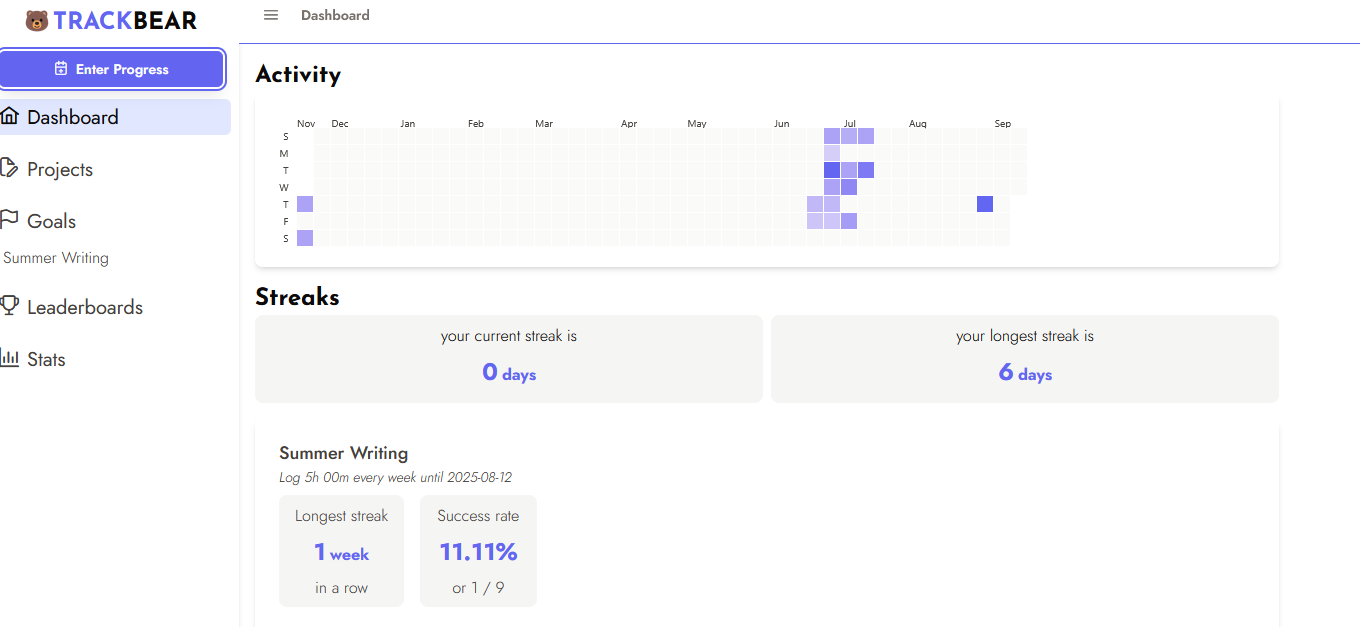
The Dashboard will give you an overview of your streak, what days you’ve logged work and some information on any goals you have personally set.
Moving down, Projects is where you can set up each of your projects. Take a look at mine.
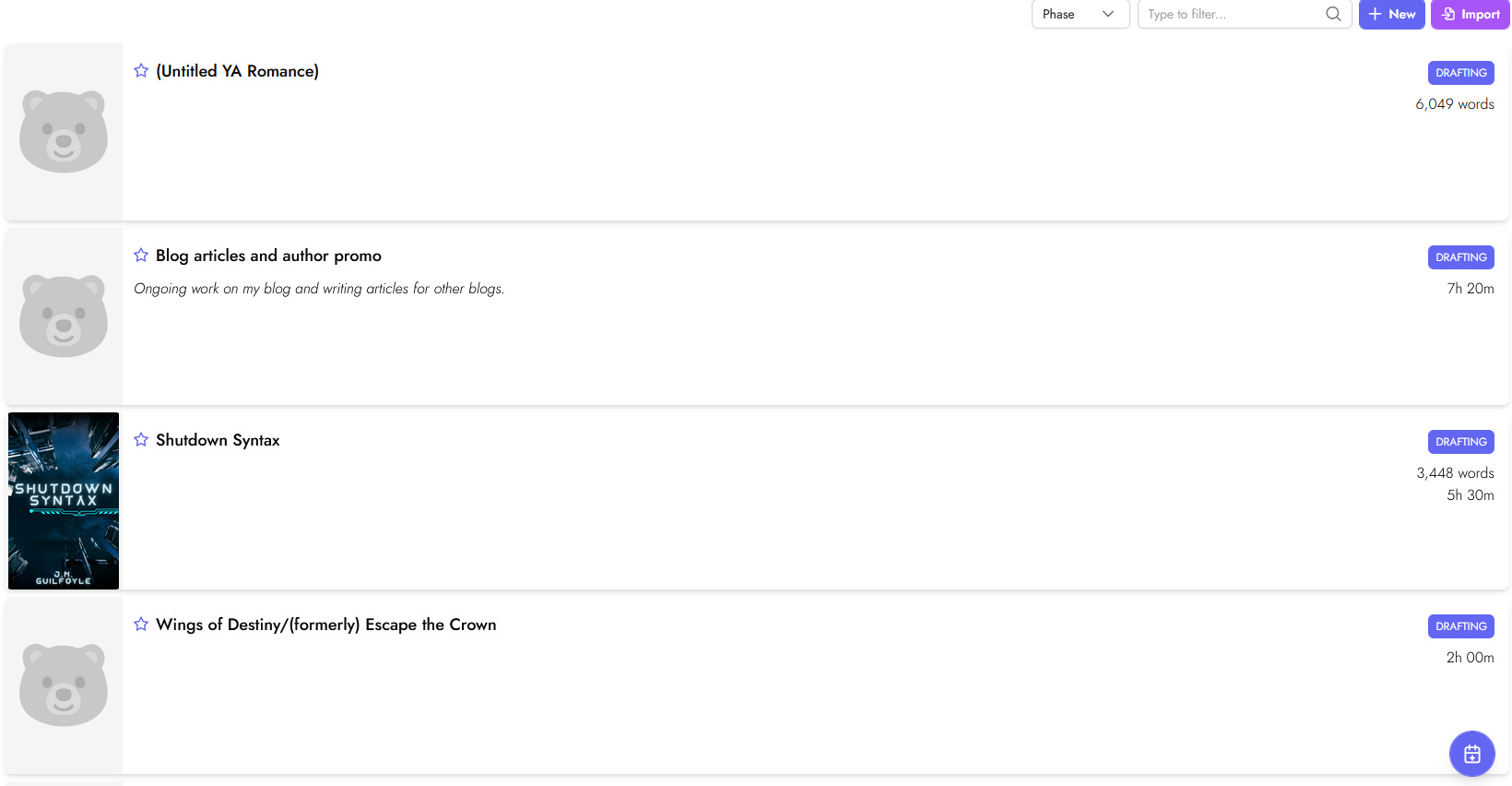
If you have previously downloaded your information from NaNoWriMo before the website shutdown, you may import your previous work here.
Otherwise, you can create new projects here by clicking New at the top right hand corner.
When you add a new project, you have several items you can enter. Obviously a title of some kind and description. But you can also set a phase you are in (planning, drafting, outlining, revising, on hold, etc). Finally, you can add a starting balance of words (or whatever you have tracked previously).
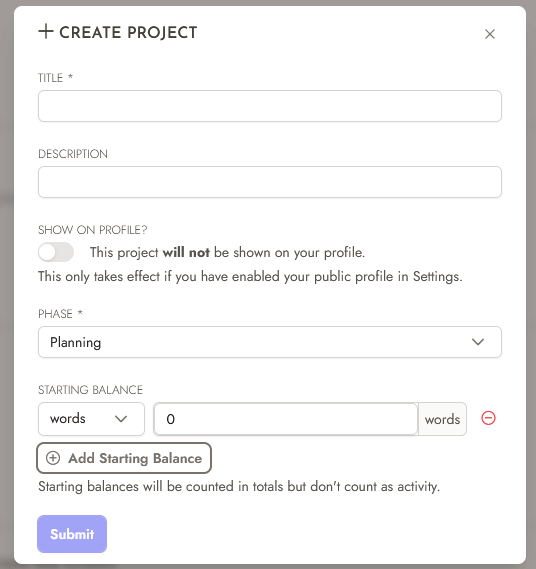
Notice, I don’t have a cover option here. Once you submit your project, you can return to the project page, click on the project, and click Configure Project to add or update certain details (and add a cover).
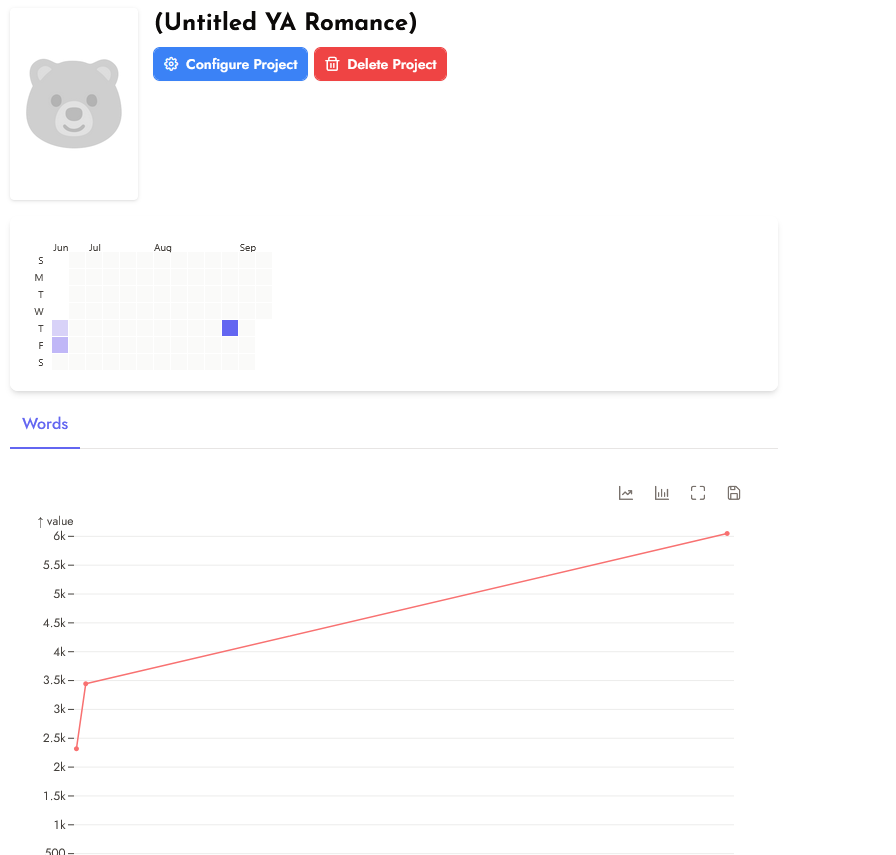
Once you click Configure Project, this is what you will see.
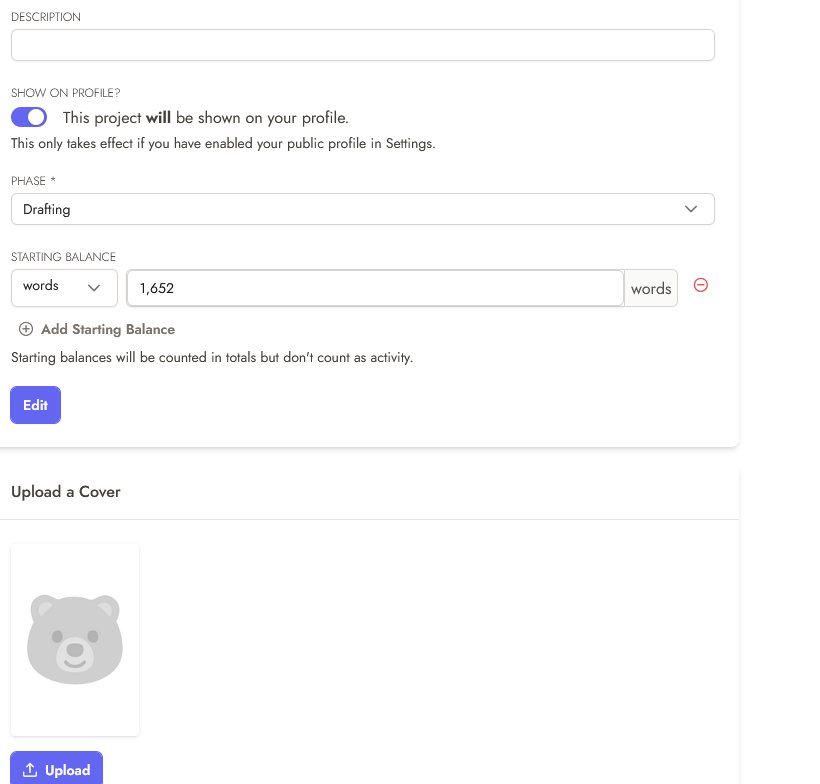
WORD OF WARNING: I DID NOT realize I needed to click that EDIT button in the middle of the Configure Project page to update my project’s information. Now you know too.
When you log your work for the day or the project of the day, you’ll later be able to click on your project and see data like this:
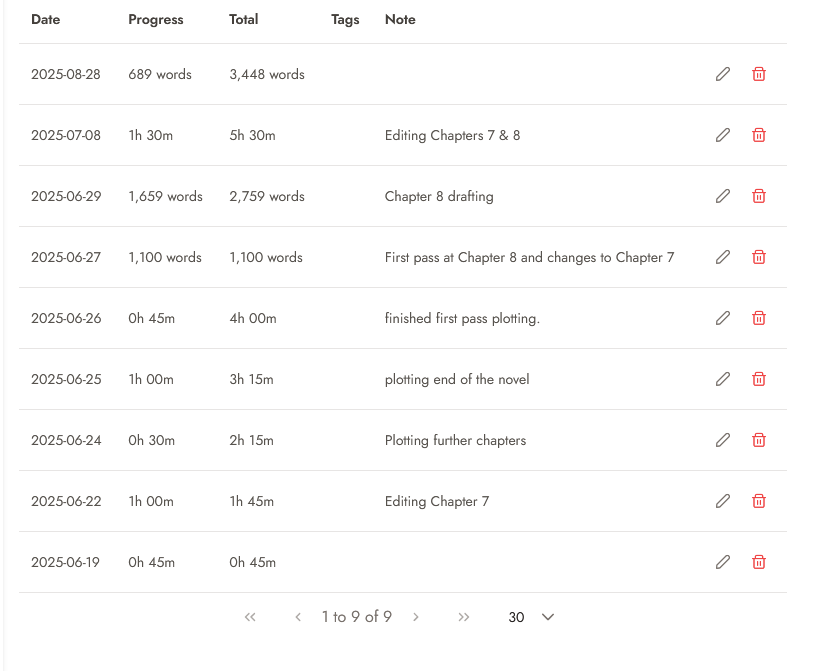
I personally like adding notes so that I can see what I was working on.
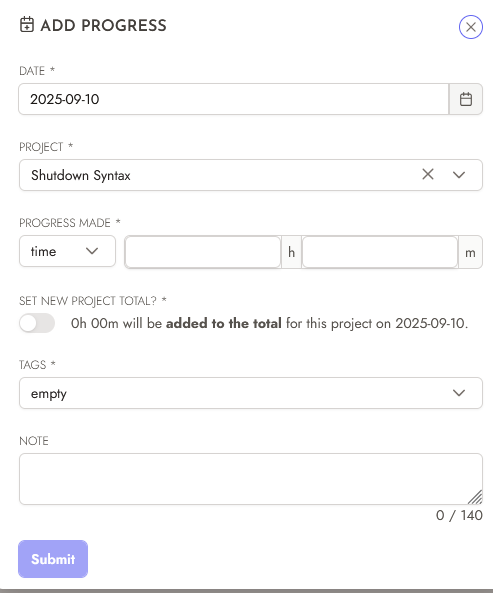
Tracking progress is easy. Click add progress and fill out the screen:
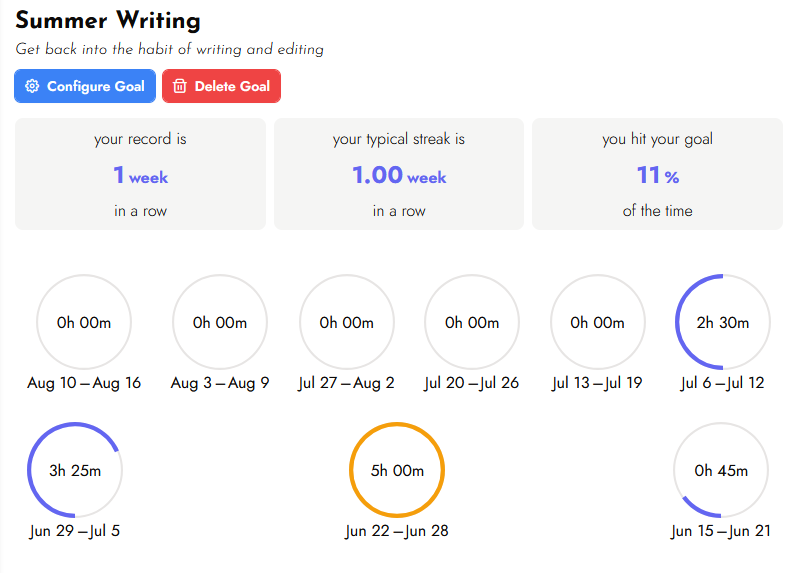
Moving on again to the sidebar menu. Goals are PERSONAL writing goals. Maybe you want to set a goal to get back into writing, write for a specific time each day, or reach 10,000 words in a week. Whatever personal goal you might want, you can create it at any time of the year.
FYI, I did terrible with this personal summer writing goal (but tis the life of a mom of young kids).
The Leaderboard is where you’ll find any multiperson goal you might join. This is where the Illinois Novel Quest leaderboard will show up. Quest Guide Gwen will send out a code that can be entered in the top right-hand corner of the Leaderboard page.
Click the “Use Join Code” or click the link she creates.

But something else that is cool? ANYONE can create a leaderboard. If you want to make a winter goal, or a Christmas Break leaderboard, or whatever… You can do that and send it to any person you would like to join you.
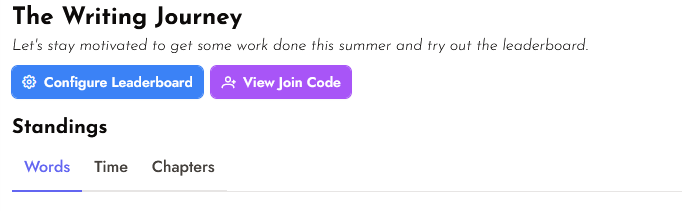
This past summer, the Writing Journey tested Trackbear and used the leaderboard. We mainly tracked these three stats, though others were open as well.
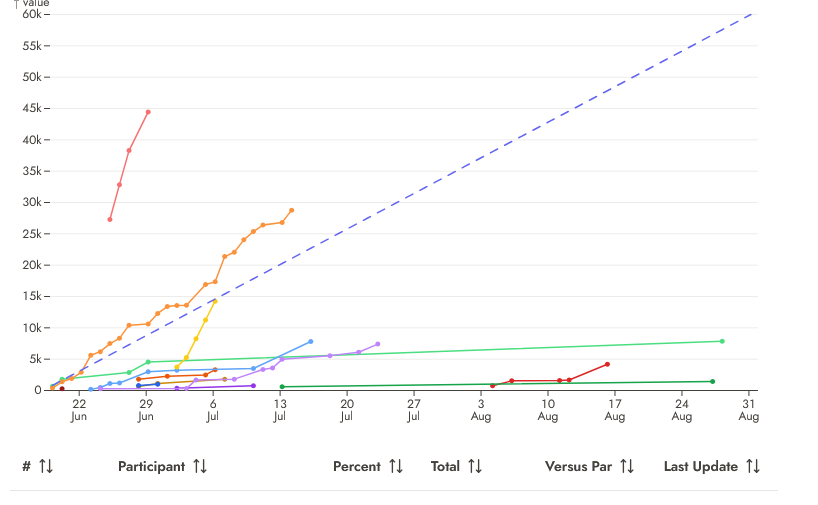
Lastly, stats are available to you as a user over your lifetime with Trackbear. It can be really useful to check out all the accomplishments you’ve made.
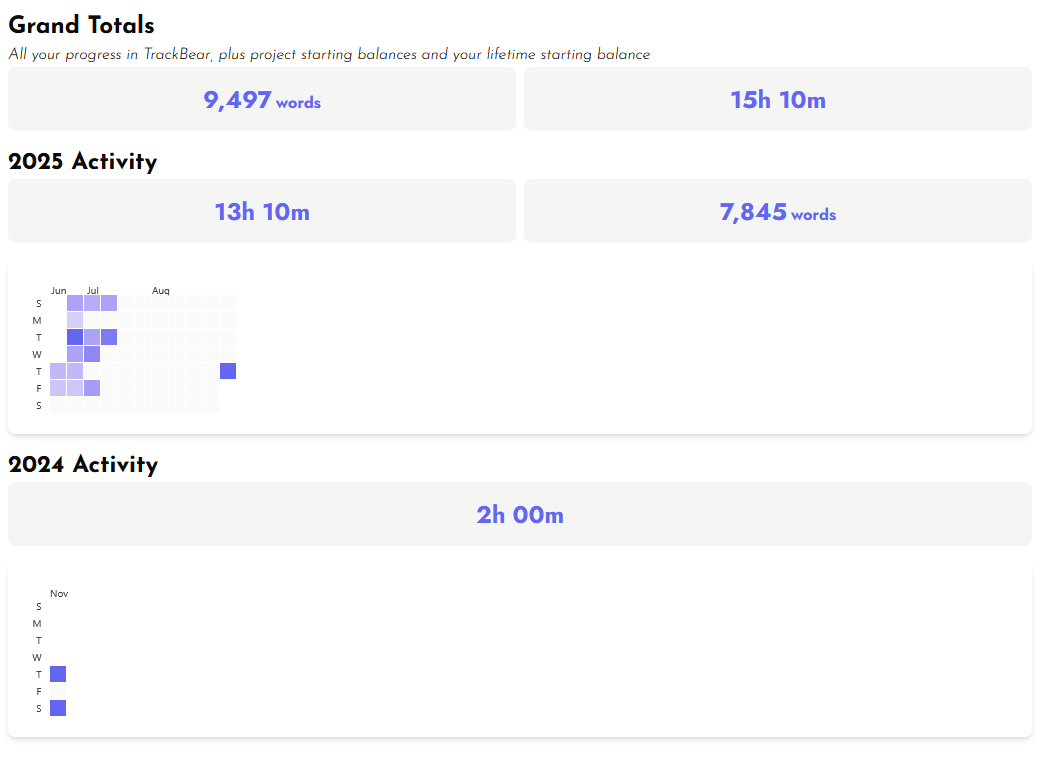
Hopefully, this provides everyone with a solid understanding of Trackbear! Happy tracking!
Thx! I think I'm all set up 🐻 and ready for NQ!